Save, load, copy, paste, and recover drawings
Save local drawing files, move content through the clipboard, and recover when browser storage or clipboard access fails.
Keep a local copy of important work, then use the clipboard when you need to move selected elements between drawings or applications. This guide covers the hosted editor's file actions, structured Excalidraw clipboard data, and the warnings that tell you when to save another copy.
Before you begin
Open the hosted editor in a browser. The guest editor stores drawings in browser storage, so treat that storage as a working copy rather than your only backup. Have a location ready where you can save an .excalidraw file if the drawing matters.
Steps
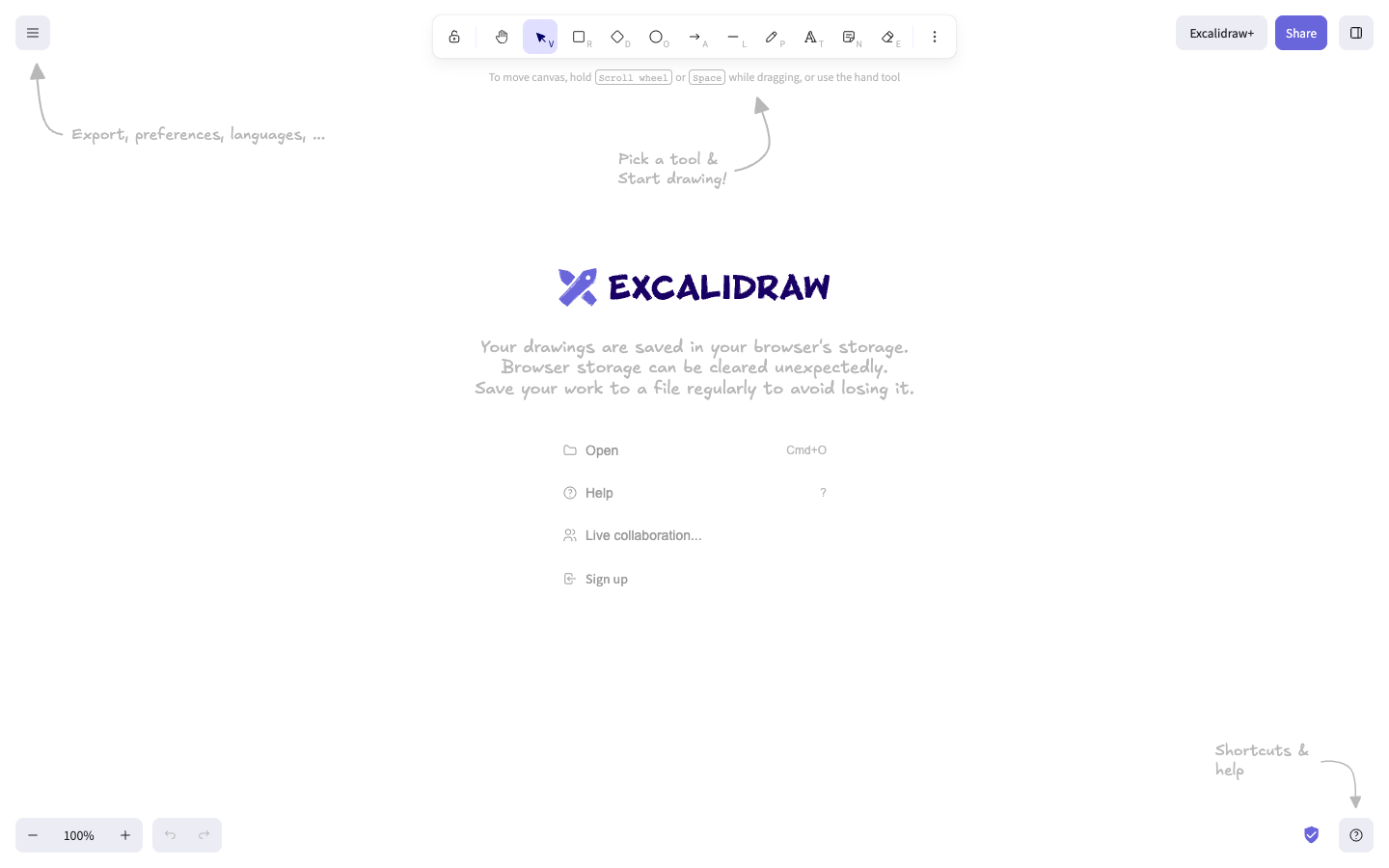
Open the editor at /, then select Menu.
The menu exposes Open, Save to..., and Export image.... If you see “Your drawings are saved in your browser's storage”, do not close the tab until you have saved work you want to keep.
Choose Save to..., then choose Save to current file when the drawing already has a file, or Save as when you want a new local file.
The saved file contains the scene: its drawable elements, app state, and associated files. Use a descriptive name such as project-flow.excalidraw. The visible result is a downloaded or updated local drawing file.
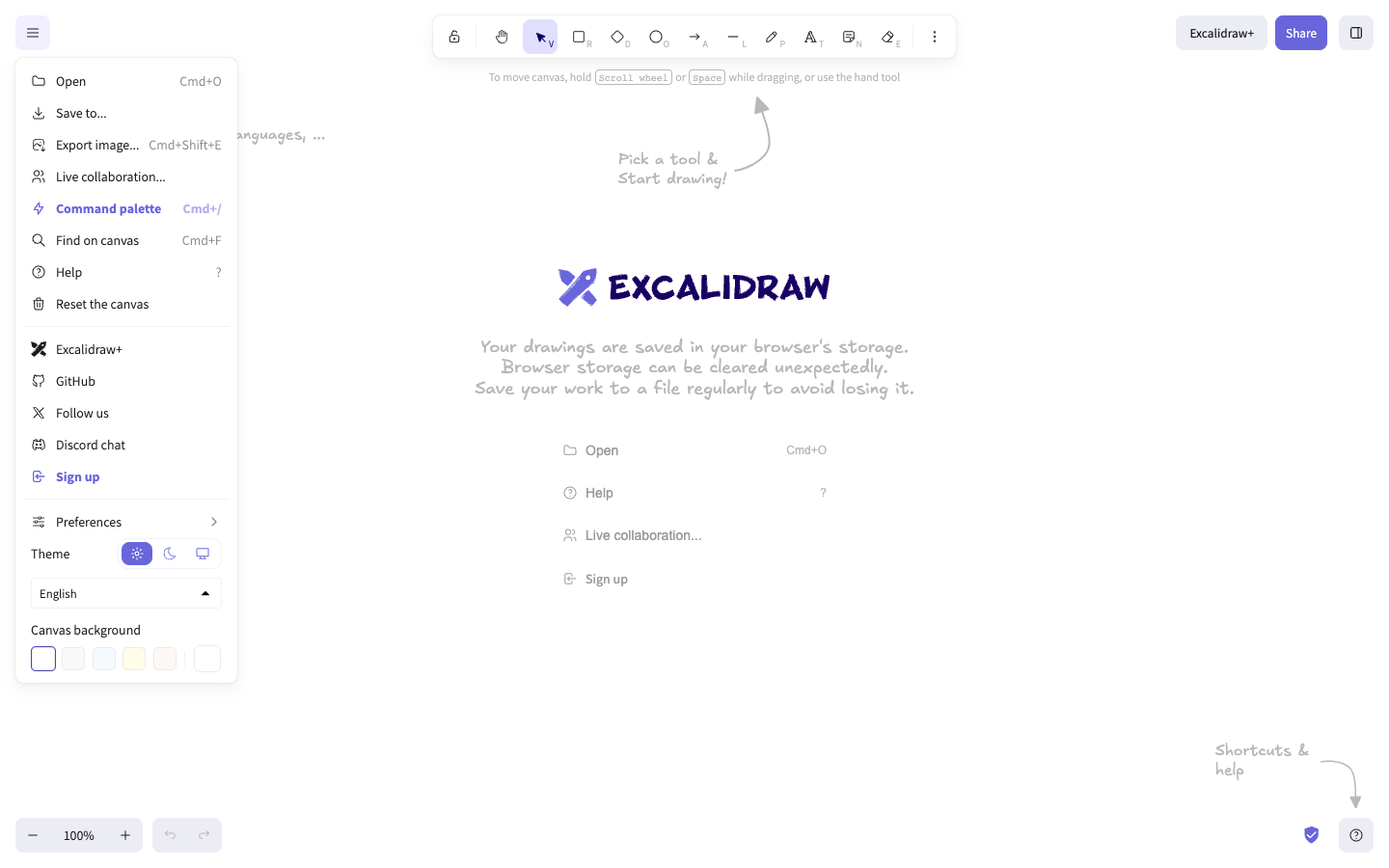
Choose Open and select an Excalidraw drawing file. Confirm the replacement prompt if the current canvas contains unsaved work.
The selected scene replaces the current canvas. If the file is malformed or unsupported, Excalidraw reports “Couldn't load invalid file” or “Unsupported file type.” Keep the original file and try another copy.
Select one or more elements, use your browser or operating system copy command, and paste into the destination canvas. Excalidraw writes structured clipboard data containing selected elements and associated files; ordinary text is also accepted as text.
The pasted elements appear on the destination canvas. Clipboard access can request browser permission. If paste cannot read or parse the clipboard, Excalidraw reports “Couldn't paste” or “Couldn't paste (couldn't read from system clipboard).”
When you see “Browser storage quota exceeded. Changes will not be saved.” or an offline collaboration warning, immediately choose Menu → Save to... and save the drawing locally. If copying fails, use Save to... as the recovery path and try the clipboard again after granting browser clipboard permission.
You can reopen the local file with Open after refreshing the editor or moving to another browser session.
Verify
Reopen the saved file with Open and confirm that the expected elements and images are present. For clipboard work, confirm that selected elements appear in the destination and remain editable rather than arriving as a single screenshot.
.excalidraw file opens successfully and the drawing content is visible on the canvas.Troubleshooting
“Couldn't copy to clipboard.”
The browser denied clipboard access or does not support the requested operation. Allow clipboard access, retry from a user-initiated copy action, or save locally with Save to....
“Couldn't load invalid file”
The selected file does not contain valid Excalidraw scene data. Keep the current canvas, locate an earlier local copy, and open that copy instead.
Your changes are not being saved
The browser may be offline or its storage quota may be full. Save to a local file before continuing; the hosted editor recommends a local file when storage or collaboration saving fails.
Next steps
Continue with export drawings as images when you need a PNG or SVG.