Use libraries
Build a reusable library, install approved library files, publish library metadata, and recover when storage fails.
Libraries let you reuse groups of drawing elements instead of recreating them. You can add selected elements, install a library from an allowed URL, save the library locally, and use Rename or publish when you are ready to share library metadata.
Before you begin
Open the hosted editor at /. You need a selected reusable element to add an item, or a valid library file or approved URL to install one. The initial library can be empty; that is a valid starting state.
Steps
Open the editor at /, then select Library.
The sidebar shows “No items added yet...” and a Browse libraries link. It also includes Keep sidebar open and Close controls.
Select a reusable element or group on the canvas, then add it to the library from the Library sidebar. Confirm the add action when Excalidraw asks for confirmation.
The item appears in the library and can be inserted into later drawings. Images, IFrame elements, and embeddable elements have documented restrictions: they cannot be added to the library or are not supported for library items.
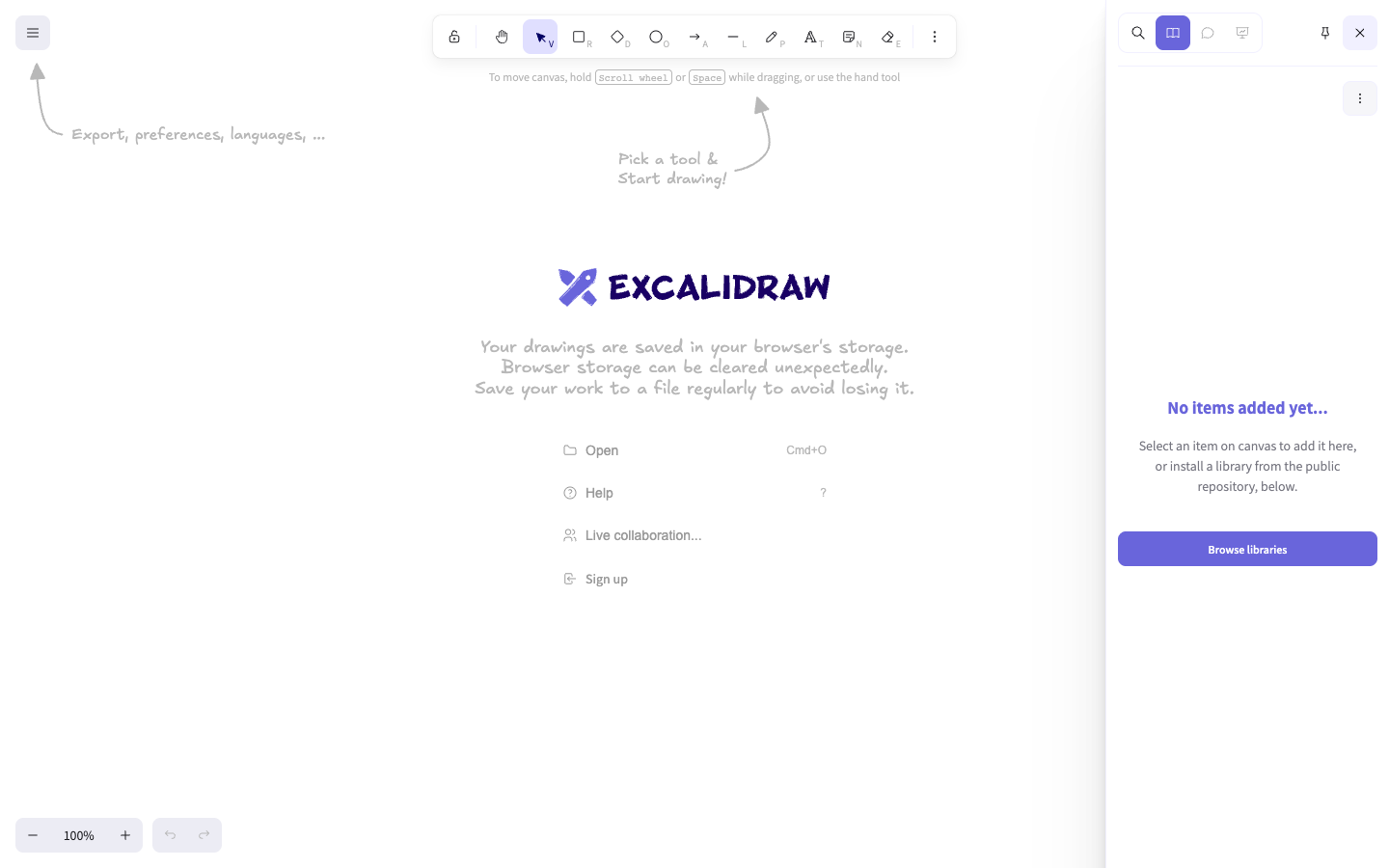
Choose Browse libraries or use a library import link supplied by a trusted source. Confirm the import when prompted.
The editor validates the library URL before fetching it. An invalid or disallowed URL is rejected, and an import failure reports “Couldn't load library.” Use a known library URL rather than bypassing validation.
Use Rename or publish to rename the library or open the publish flow. If you publish, provide requested metadata such as Library name, Library description, and author information.
Before changing a library with important items, save a local library file. If browser storage fails, Excalidraw reports “Couldn't save library to storage. Please save your library to a file locally to make sure you don't lose changes.”
When the library cannot be loaded or storage is unavailable, use the locally saved library file and import it again through the Library workflow. If an item was removed accidentally, do not reset the library; restore from the local copy.
The recovery result is a populated Library sidebar with the expected reusable items.
Verify
Insert one library item onto the canvas and confirm that it appears as editable Excalidraw content. Then close and reopen the editor or reload the library from its local file to confirm that the saved library persists.
Troubleshooting
“Couldn't load library”
The library request or restoration failed. Check that the source is reachable and that the URL is allowed, then retry or import the local library file.
“Invalid or disallowed library URL”
The URL does not pass the editor's allowed-domain validation. Use the library's canonical published URL or a local library file; do not paste an unrelated endpoint.
“Couldn't save library to storage”
Browser storage could not persist the update. Save the library to a local file immediately, then reduce stored content or continue from the saved copy.
An item cannot be added
The selected content may be an image, IFrame, or embeddable element, which has a documented library restriction. Select supported drawing elements instead.
Next steps
Use style and organize diagrams to prepare consistent elements before adding them to a library.