Configure preferences and keyboard shortcuts
Change the editor appearance and language, adjust the canvas background, and find keyboard shortcuts.
Configure the hosted editor for the way you work. Preferences affect the editor view, while the Help dialog provides the current shortcut reference.
Use this guide when you want to change the appearance or canvas without changing the elements in an existing drawing, or when you need the product's current shortcut names rather than browser or operating-system shortcuts.
Before you begin
Open the editor at / in a supported browser. These settings are local to the editor session or browser environment; keep a local drawing file when the drawing matters. Start with a drawing open if you need to compare the canvas before and after a preference change.
Change preferences
Open the menu button. The menu contains Preferences, theme controls, the language selector, and Canvas background controls.
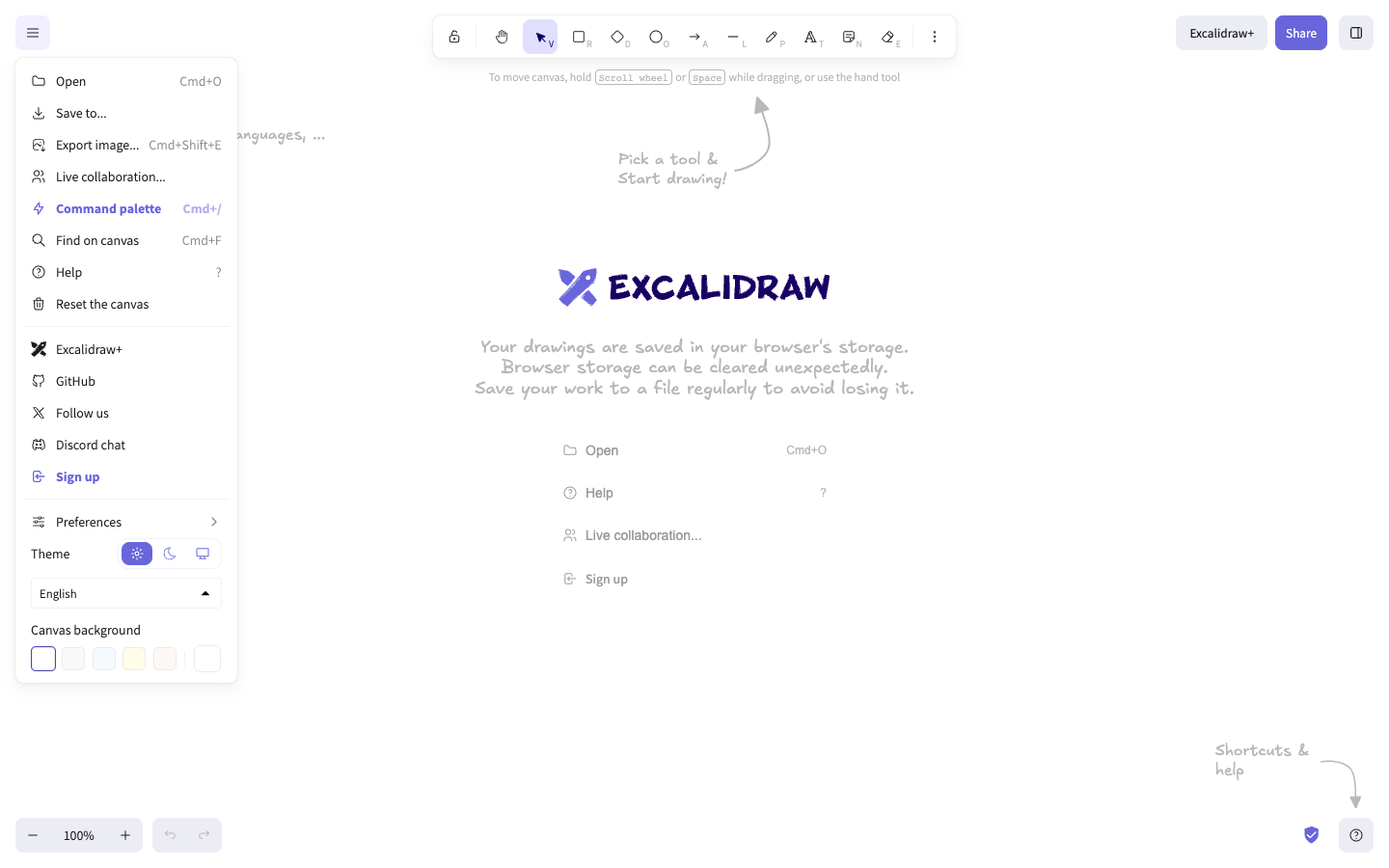
Choose Dark mode, Light mode, or System mode. The editor changes its interface theme immediately; the drawing remains the same.
Use the language selector to choose a supported language, then choose the canvas background you need. The interface rerenders with the selected language, and the canvas background changes without changing scene elements.
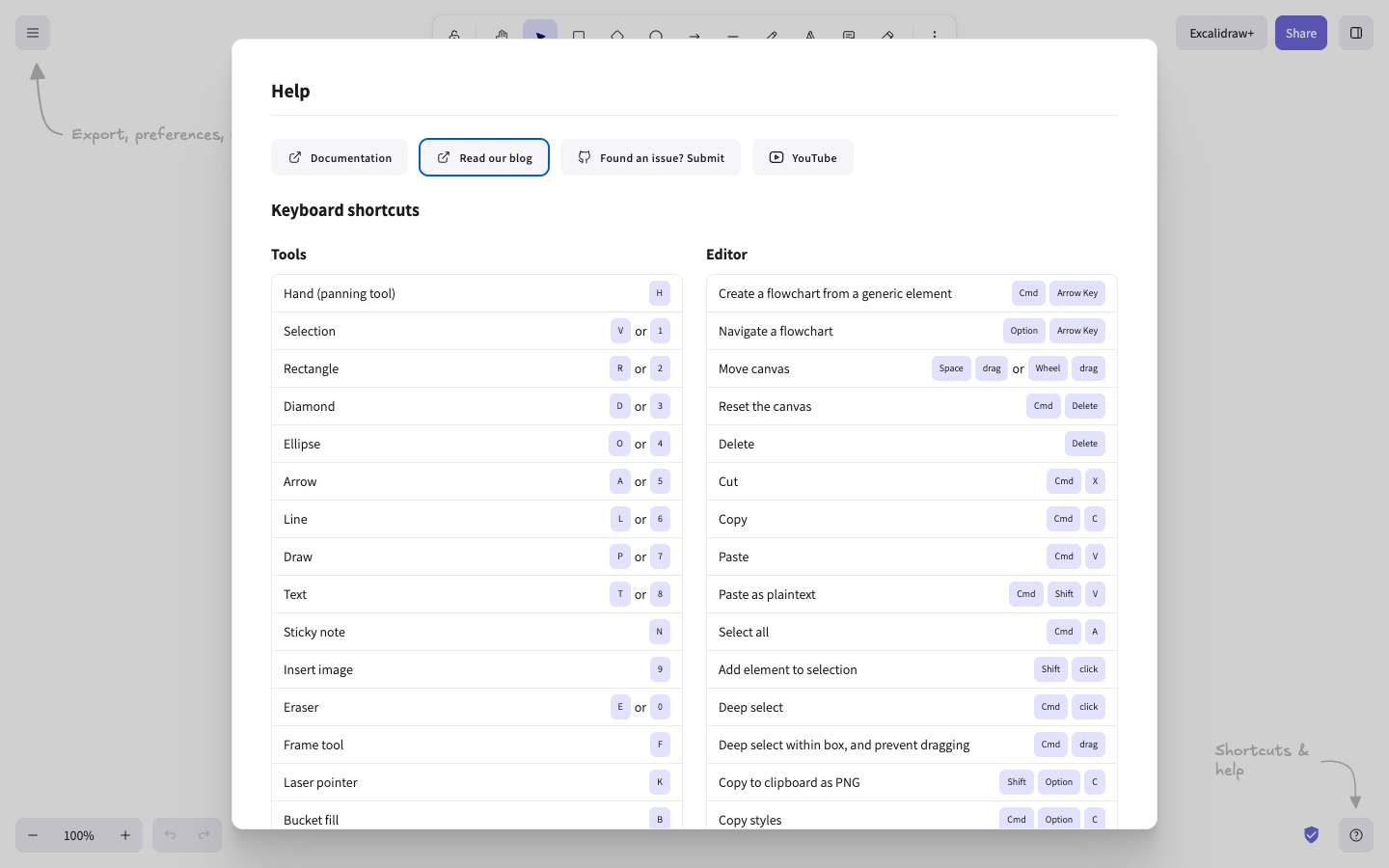
Choose Help. Review the Keyboard shortcuts sections grouped under Tools, View, and Editor.
Verify
Change one preference and confirm the visible editor state changes. Open Help and confirm the shortcut groups are present. To verify a language change, choose another language and check that a tool label changes; return to the default language when finished.
Troubleshooting
If the language does not change, reopen the language selector and choose a supported value, then wait for the interface to rerender. If the canvas looks unchanged after a background choice, distinguish the canvas from the surrounding editor theme and reopen the menu to confirm the selected control. If you cannot find a shortcut, use Help rather than relying on a browser or operating-system shortcut list.
If a preference appears to reset after you reopen the editor, treat the setting as session- or browser-environment-local and confirm it again in the same environment. If the shortcut list differs from an older note, use the groups in Help as the current reference and check Tools, View, and Editor separately.
Next steps
Use navigate, search, and present a canvas to apply the view controls you found here.