Troubleshoot the hosted editor
Diagnose common image, clipboard, storage, file-restore, and collaboration failures in the hosted editor.
Use this page when the hosted editor cannot paste, restore an image, save locally, load a scene, or connect to collaboration services. Start with the least invasive check and save a local file before retrying a risky recovery.
Start with the recovery surfaces
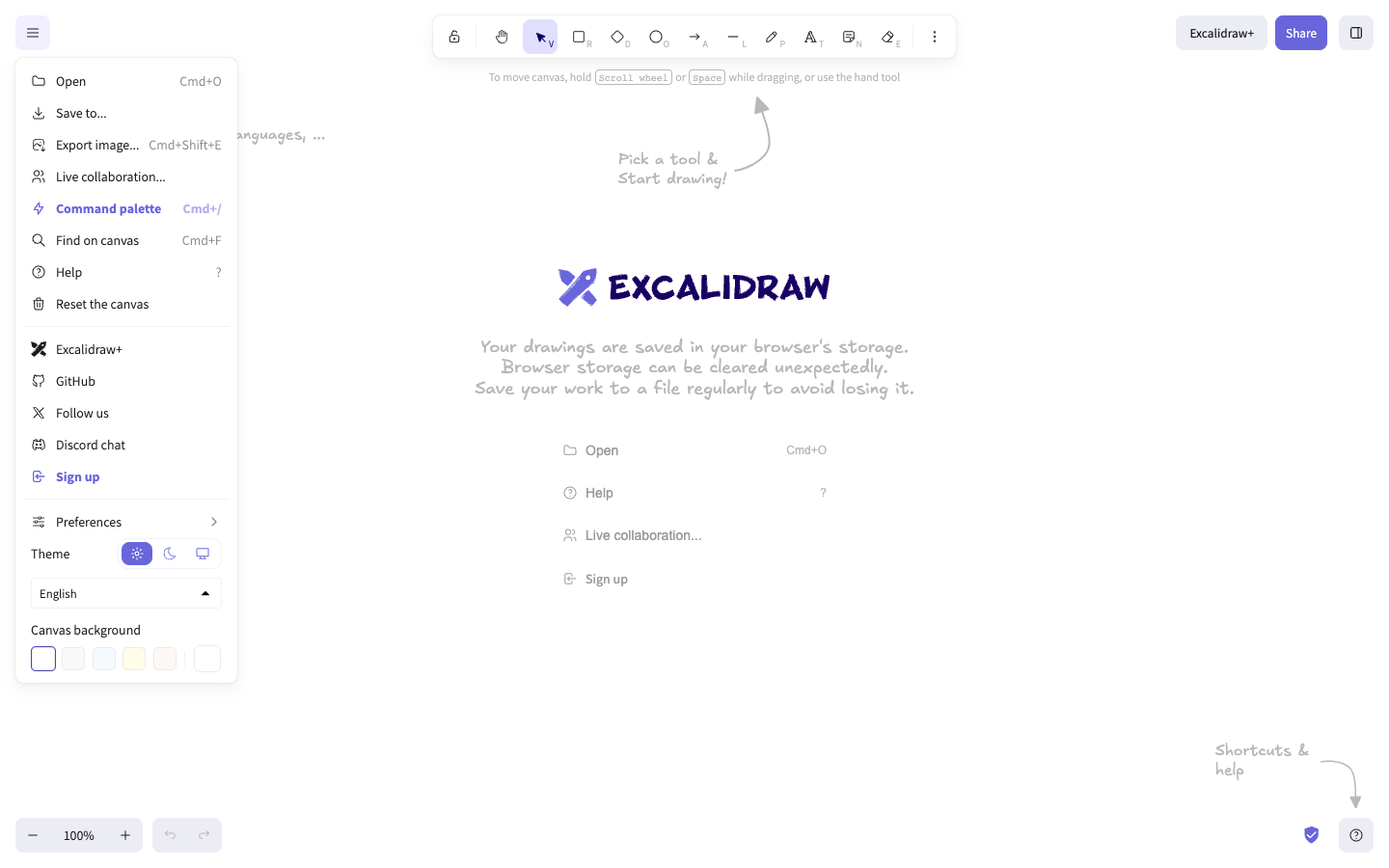
Open the editor at /, then open the main menu. The menu exposes Open, Save to..., Export image..., Live collaboration..., Help, and Preferences.
Image restore fails
Symptom: Excalidraw reports that the image does not contain scene data or that it cannot restore the image.
Cause: Scene metadata could not be decoded from the PNG or SVG. A normal image is not automatically an Excalidraw scene.
Fix: Open the original .excalidraw or JSON file instead. If you intended to restore from an image, use an image exported with scene embedding enabled. Confirm recovery by checking that the scene elements appear on the canvas.
A pasted or dropped image does not appear
Symptom: You paste or drop an image, but it does not remain on the canvas. Depending on the failure, Excalidraw may show Couldn't insert image. Try again later..., Unsupported file type., Couldn't insert SVG image. The SVG markup looks invalid., or File is too big. Maximum allowed size is {{maxSize}}. A clipboard read can instead show Couldn't paste (couldn't read from system clipboard). or Couldn't paste.
Cause: For image files, paste and drop accept recognized image MIME types only: image/svg+xml, image/png, image/jpeg, image/gif, image/webp, image/bmp, image/x-icon, image/avif, and image/jfif. An unsupported file, invalid SVG markup, an image larger than the configured limit, or an image initialization failure prevents the temporary image element from being kept on the canvas.
Fix: Use Insert image with a supported image file, or copy or drop the image again from its source. If the message mentions SVG markup, use a valid SVG or a raster image such as PNG or JPEG. If the file is too big, reduce its size before inserting it. If you see a clipboard error, use Insert image instead. Confirm recovery when the image is visible on the canvas and remains after you select another tool.
Clipboard paste fails
Symptom: The editor shows Couldn't paste, Couldn't paste (couldn't read from system clipboard)., or Unsupported clipboard type.
Cause: The browser did not provide readable clipboard data, or the clipboard MIME type is not supported.
Fix: Copy the content again, grant clipboard access if the browser asks, and paste a supported text or image type. If it still fails, use Open or Insert image instead. Confirm that the pasted element appears before closing the source application.
Browser storage is full or unavailable
Symptom: The editor reports Browser storage quota exceeded. Changes will not be saved.
Cause: The browser storage quota is exhausted.
Fix: Immediately choose Save to... and save a local file. Do not reset the canvas until the file is safe. Confirm recovery by opening the saved file in a separate editor tab.
Collaboration cannot connect or save
Symptom: The editor reports that it could not connect to the collaboration server, or warns that changes will not be saved.
Cause: The collaboration backend cannot be resolved or reached, the browser is offline, or the canvas is too large for the backend save.
Fix: Check the network connection and reload when the error specifically recommends it. Before retrying collaboration, use Save to... to keep a local copy. Confirm recovery by reconnecting and verifying that the session appears without discarding the local file.
A worker or hosted build fails
Symptom: An integration or hosted build throws WorkerUrlNotDefinedError.
Cause: A worker URL was not supplied, or the worker was bundled into the main chunk.
Fix: Check the bundler's worker asset configuration and ensure the worker is emitted as a separate asset with a URL. This is an integration/build issue; use the React embedding quickstart for the supported package setup.
Next steps
For file-specific recovery, see save, load, copy, paste, and recover drawings. For embedded applications, see troubleshoot embedding and builds.