Export drawings as images
Export a drawing as PNG or SVG, choose what to include, and optionally preserve scene data inside the image.
Export a finished drawing as a PNG for general use or an SVG when you need scalable vector output. You can also embed scene data in an exported PNG or SVG so the image can be restored as an Excalidraw scene later; embedding increases the file size.
Before you begin
Open the editor and create or open a drawing with at least one element. Excalidraw cannot export an empty canvas and reports “Cannot export empty canvas.”
Steps
Open the editor at /, then select Menu.
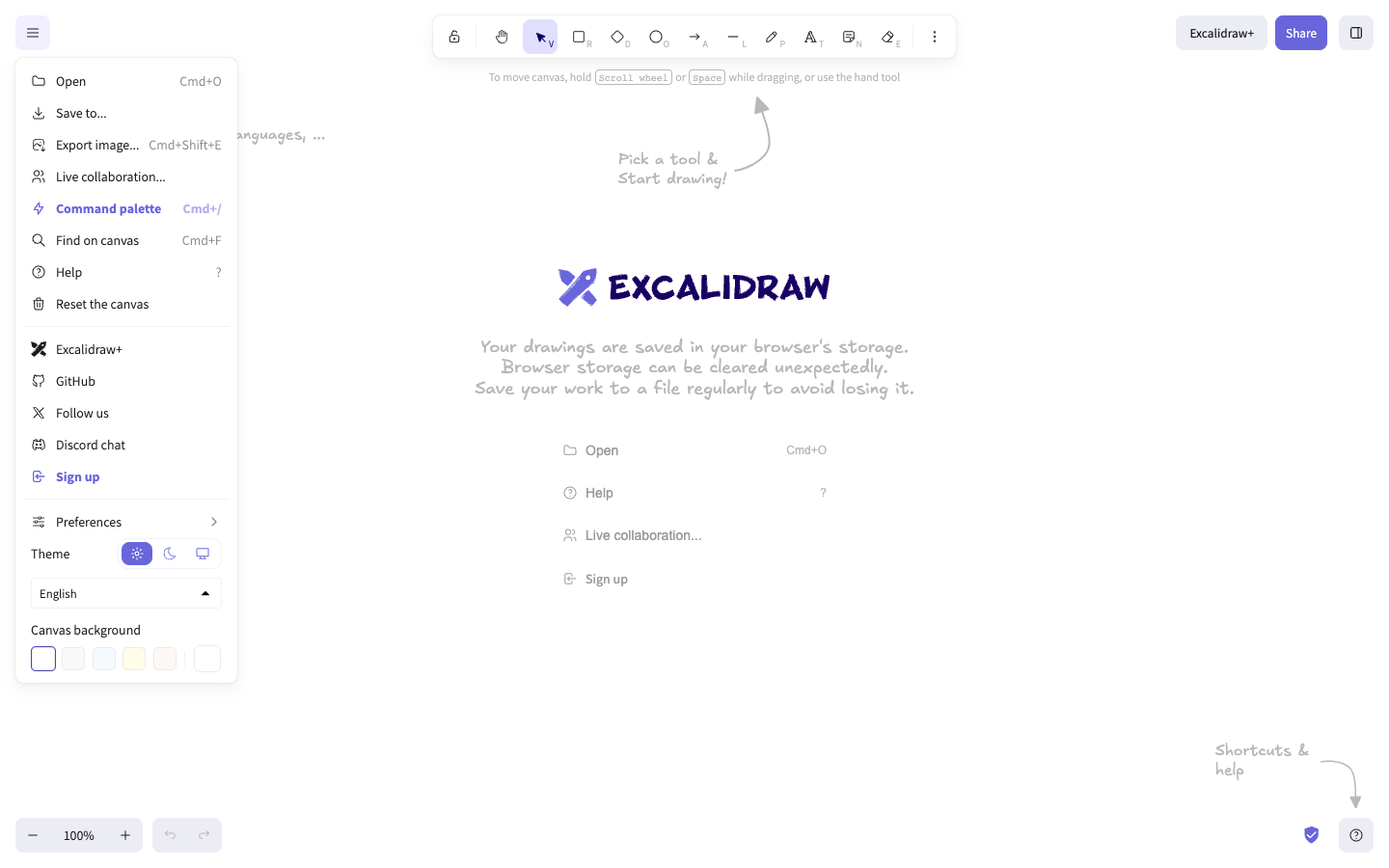
Select Export image.... The Export image dialog opens with controls for Background, Only selected, Dark mode, Embed scene, Scale, and Padding.
Choose Only selected when the export should contain the current selection; leave it off to export the drawing. Choose Background according to whether the receiving document needs the canvas background, and use Dark mode only when the dark appearance is intended.
The resulting file reflects these choices. Keep essential content in text as well as in the image when the export is used in an accessible document.
Select PNG for a raster image or SVG for scalable vector output. The corresponding file is created with the chosen scope, background, scale, and padding.
For a drawing that must remain editable, turn on Embed scene before exporting. The editor stores scene data in the exported PNG or SVG, allowing a compatible Excalidraw workflow to restore it later. The dialog warns that this increases the exported file size.
Open the resulting image in the target document, presentation, or design tool. Keep the original .excalidraw file as the primary editable source; an image export is a presentation copy unless you deliberately enabled scene embedding.
For developers using the export utility, exportToBlob returns a promise for a Blob. Its documented defaults are image/png, quality 0.92, and export padding 10; quality applies to JPEG and WebP formats.
Verify
Open the exported PNG or SVG and confirm that the expected elements, background, and selection scope are present. If you enabled Embed scene, test restoration in a compatible Excalidraw workflow before deleting the original drawing.
Troubleshooting
“Cannot export empty canvas.”
There are no drawable elements in the export scope. Add an element, open a drawing, or clear Only selected if the current selection is empty, then export again.
The restored image has no scene data
Scene embedding was not enabled, or the image was rewritten by another application. Export again with Embed scene enabled and keep the original file for recovery.
The exported file is larger than expected
Embedded scene data increases PNG and SVG size. Disable Embed scene for a presentation-only image, or reduce the export scope and scale when those choices meet your need.
Next steps
When the drawing needs input from other people, follow share and collaborate.