Share and collaborate
Choose between an encrypted live collaboration session and a read-only shareable link.
Use Share when other people need to work with your drawing or view a read-only copy. Excalidraw presents these as different actions: Start session creates live collaboration, while Export to Link creates a read-only link.
Before you begin
Open the hosted editor with a drawing you are ready to share. Save a local copy first if the drawing is important. The source does not establish persistence, access control, expiration, or backend limits, so confirm those requirements separately for your workflow.
Choose a sharing mode
The diagram describes the decision in the dialog: a session is for invited collaborators, and a link is for viewing a read-only copy without an editing session.
Steps
Open the editor at /, then select Share.
The sharing dialog opens. Keep your local file available before you submit either sharing action.
Review the two choices in the Live collaboration dialog.
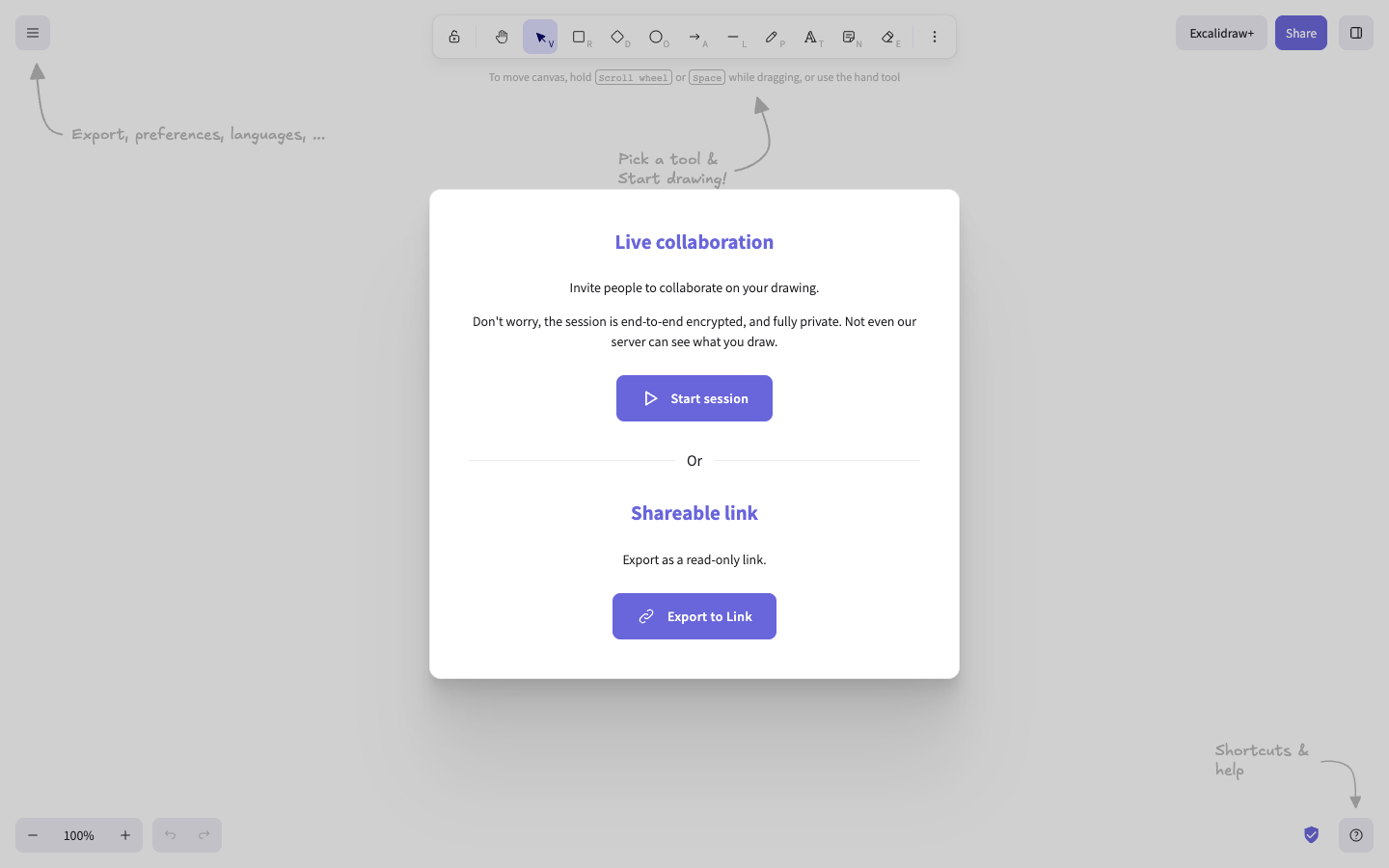
Choose Start session when people must collaborate on the drawing. Choose Export to Link when recipients only need a read-only copy. Do not submit a choice until you have selected the intended mode.
Select Start session, then share the generated collaboration link with the people who should join. The dialog describes the session as end-to-end encrypted and displays a link for collaborators.
The visible success state is “Live-collaboration session is now in progress.” Continue editing with collaborators while the session is active.
When you finish collaborating, save a local file before selecting Stop session. Stopping disconnects you from the room, and the source warns that stopping can overwrite the previously stored local drawing. Closing the browser tab is safer when you need to keep that local drawing unchanged.
After stopping, you can continue working locally; other people remain able to collaborate on their version.
Verify
For a session, verify that the dialog reports an active session and that collaborators can join using the shared link. For a read-only link, open the generated link in a separate viewing context and confirm that it presents the drawing without an editing session.
Troubleshooting
“Couldn't create shareable link.”
The hosted sharing operation failed. Save the drawing locally, retry from Share, and do not discard the local copy until the recipient link opens successfully.
“No internet connection available. Your changes will not be saved!”
The editor cannot save collaboration changes while offline. Save a local file and retry when connectivity is restored.
“Couldn't save to the backend database”
The backend did not save the session data. Preserve your work with a local file; if the message says the canvas is too big, reduce the canvas scope or continue from the local file.
Next steps
After sharing, save, load, copy, paste, and recover drawings to keep a local recovery copy.