Create and edit diagrams
Build a first diagram with Excalidraw shapes, connectors, freehand strokes, text, and sticky notes.
Create a small flow diagram from a clean canvas: place shapes, connect them, add a label, and finish with a note. This tutorial is for people using the hosted editor in guest mode; the same visible tools are available when the editor is embedded.
Before you begin
Open Excalidraw at / and start with a blank canvas. No account is required for this guest workflow. Use the visible toolbar labels rather than relying on color or position, and keep a local copy when the drawing matters.
Draw the diagram
Select Rectangle, then drag on the canvas to make a box named Start. Select Diamond for a decision shape or Ellipse for a rounded step. The new element remains selected after you release the pointer.
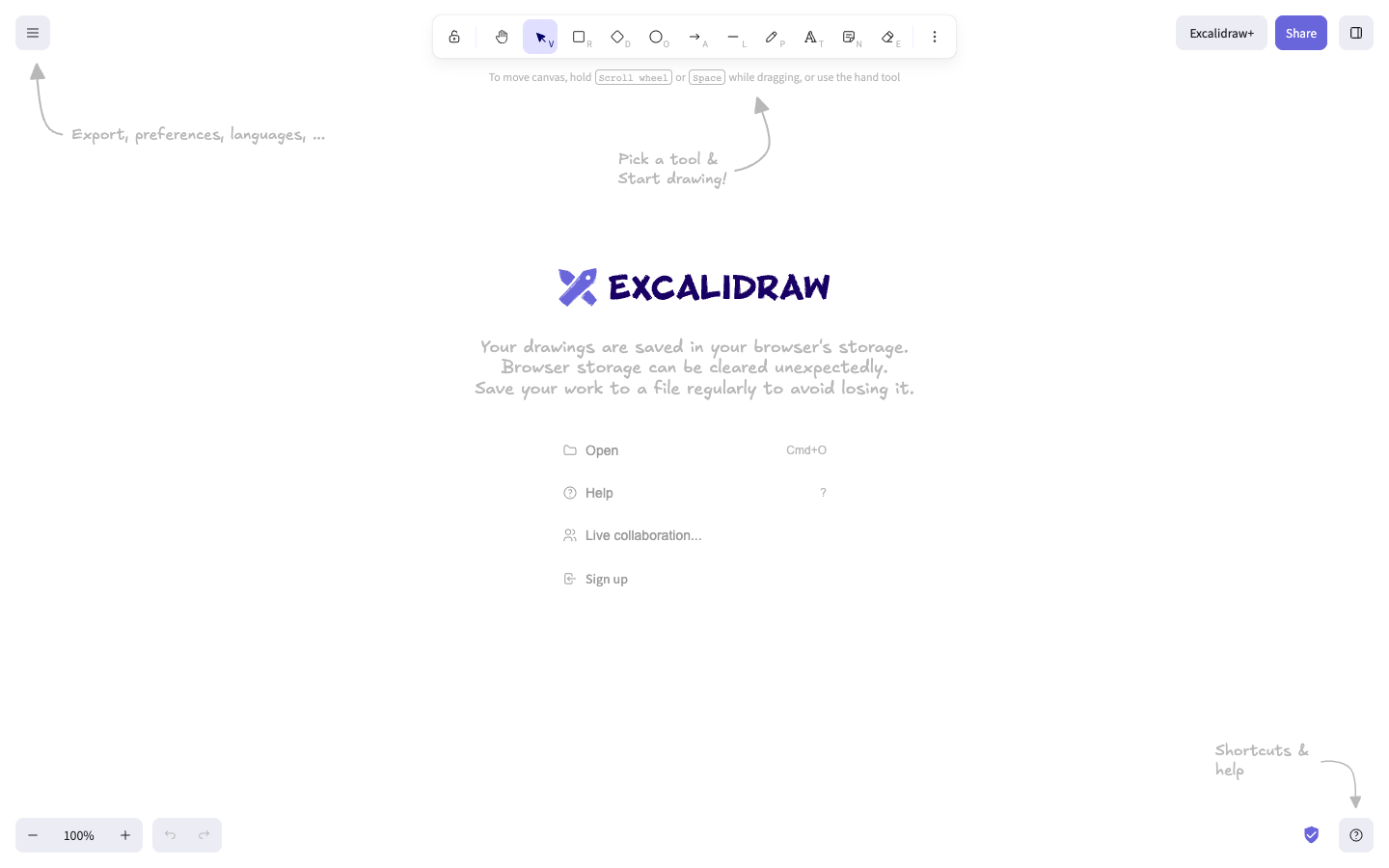
Select Arrow, then drag from the first shape toward the second. Excalidraw supports a single dragged line and multi-point arrows; click the last point to finish a multi-point path. When an arrow endpoint reaches a shape, it can bind to that element so the relationship follows the shape.
Select Draw and click-drag to sketch a freehand stroke, releasing when you finish. For a straight connector or segment, select Line. The selected tool's hint tells you whether a click starts multiple points or a drag creates a single line.
Select Text, then click the canvas and type Review request. You can also double-click anywhere with Selection to start text. Finish editing with the editor's finish command shown in the hint; the text stays on the canvas and can be selected again.
Select Sticky note, then click to place a note or drag to size it. Type a short follow-up such as Confirm owner, then finish text editing. The note becomes another selectable element in the scene.
Verify the result
You should see a rectangle, a connector, at least one label, and a sticky note together. Select the arrow and move the connected shape: the binding keeps the endpoint associated with the shape. Select the text or note again to confirm that both can be edited inline.
Common problems
Next, style and organize your diagram before you share or export it.